

Langfuse
Connect Langfuse as an access review source using an organization-scoped API key pair so Probo can list your organization's members.
Probo reads your Langfuse organization’s members through the organization-scoped public API so you can review who has access.
Prerequisites
Section titled “Prerequisites”- Probo organization administrator access
- The Owner role in the Langfuse organization (Langfuse grants
organization:CRUD_apiKeysto Owner only, so an Admin, Member or Viewer cannot create the key) - A Langfuse plan that includes the organization management API, which Langfuse gates behind the
admin-apientitlement. On Langfuse Cloud that means Enterprise, or Pro with the Teams add-on; self-hosting requires the Enterprise Edition. Hobby, Core and plain Pro do not have it, and neither does the open source or the self-hosted Pro edition. The pricing page lists no Team tier, because the add-on is bought on top of Pro. Once it is active the organization badge reads Team and an API Keys tab appears in organization settings, which is how you confirm the entitlement before going further. Without it Langfuse hides that tab and the memberships endpoint answersThis feature is not available on your current plan.If your organization is on a legacy or individually negotiated plan, confirm the entitlement with Langfuse. - The Base URL of the Langfuse instance you are reviewing, which Probo asks for alongside the key when you connect. On Langfuse Cloud it is the host you sign in to:
https://cloud.langfuse.com(EU),https://us.cloud.langfuse.com(US),https://jp.cloud.langfuse.com(Japan) orhttps://hipaa.cloud.langfuse.com(HIPAA). A self-hosted instance uses its own deployment URL. Enter the host on its own, without the/api/publicpath
Collected Fields
Section titled “Collected Fields”| Probo field | Langfuse field | Notes |
|---|---|---|
| Name | name | Falls back to the email address |
email | A membership with no email address is skipped | |
| Role | role | OWNER → Owner, ADMIN → Admin, MEMBER → Member, VIEWER → Viewer, NONE → None. Any other value is kept verbatim |
| Admin | role | Flagged as an administrator when role is OWNER or ADMIN |
| Status | Not supported | |
| MFA | Not supported | |
| Last login | Not supported | |
| External ID | userId | Stable identifier used to track the account across reviews |
| Created at | Not supported |
The memberships endpoint returns one record per organization member, with no filter on the role. Collaborators who work in a single project are still organization members with the organization role None, so they appear in the review as well. The endpoint does not return pending invitations.
Step 1: Create an Organization-Scoped API Key
Section titled “Step 1: Create an Organization-Scoped API Key”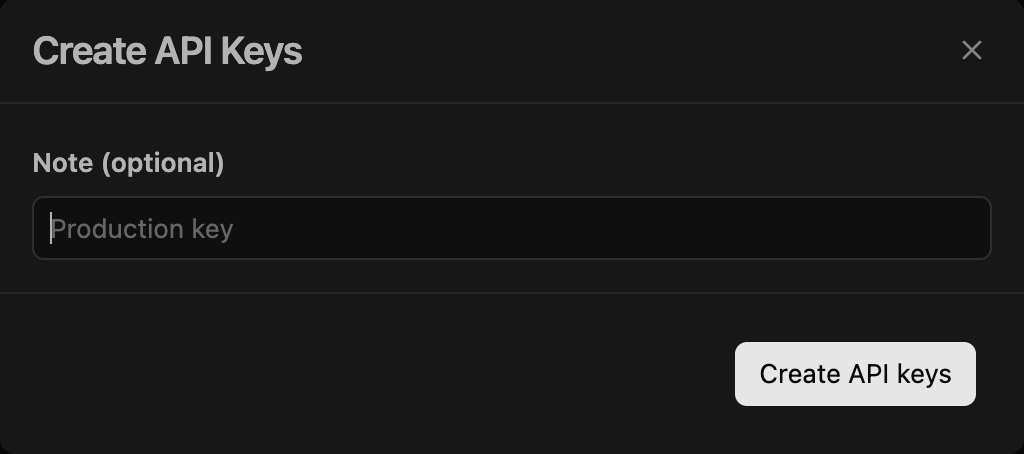
- In Langfuse, signed in as an organization Owner, open the organization you want to review and click Settings in the sidebar to reach Organization Settings.
- Open the API Keys tab and click Create new API keys.
- Fill in Note (optional) (e.g.
Probo Access Review) and click Create API keys. - Copy the Public Key and the Secret Key and store them securely. Langfuse shows the secret key only once and displays a masked version after that.
Step 2: Connect in Probo
Section titled “Step 2: Connect in Probo”- In Probo, go to Settings > Connectors and click Add more to open the Marketplace.
- Find Langfuse and open it.
- Enter a Name for the connection (e.g.
main), paste the two keys as onepk-lf-…:sk-lf-…string (public key, a colon, then the secret key) into API key, enter your Base URL (the Langfuse host you sign in to, or your self-hosted deployment URL), and click Connect. - Go to Access Review > Sources, click Add sources, tick Langfuse, and click Add.
Probo names the source after the Base URL you entered and pulls your organization’s members into your campaigns. The memberships endpoint carries no organization name, so the source keeps the URL as its name.
Troubleshooting
Section titled “Troubleshooting”- No API Keys tab in organization settings. Langfuse shows the tab only when the organization’s plan includes the organization management API and you hold the Owner role. Check both before creating the key.
- Key rejected. Confirm you created the key on the organization settings page rather than on a project’s settings page, that you pasted both halves as
pk-lf-…:sk-lf-…with the colon in between, and that the Base URL is the same Langfuse host you created the key on. Each cloud region is a separate deployment, so a key from one host does not authenticate against another. - “This feature is not available on your current plan.” The organization management API is gated on the plan, not on the key. Langfuse grants the
admin-apientitlement to Langfuse Cloud Enterprise, to Pro with the Teams add-on, and to a self-hosted Enterprise Edition deployment. Move the Langfuse organization onto a qualifying plan, or confirm the entitlement with Langfuse, then connect again. If the organization cannot move onto one of those plans, review its members through a CSV access source instead. - No members appear. An organization-scoped key is bound to the organization you created it in and lists only that organization’s members. Create the key inside the organization you want to review.