

Resend
Connect Resend as an access review source using a Full access API key so Probo can review the account's programmatic API-key credentials.
Probo reads your Resend account’s API keys through the Resend API so you can review which programmatic credentials have access. It does not collect the people on your Resend team, because the Resend API does not expose them.
Prerequisites
Section titled “Prerequisites”- Probo organization administrator access
- Access to the Resend account’s API Keys page, so you can create the key for the account you want to review
- A Resend API key with Full access (Sending access cannot read the account’s API keys)
Collected Fields
Section titled “Collected Fields”The Resend dashboard lists your team members under Settings > Team, but the public API has no endpoint that returns them, so Probo cannot collect them. Resend exposes the account’s API keys instead, so each reviewed account is an API key (a service account) with no email or role, and no account is flagged admin. To review the people on your Resend team, add them through a CSV source.
The Full access key used to connect Probo is part of the same API-key inventory and can therefore appear in the campaign. Review it like any other privileged programmatic credential.
| Probo field | Resend field | Notes |
|---|---|---|
| Name | name | The label given to the API key when it was created |
| Not supported | ||
| Role | Not supported | |
| Admin | Not supported | |
| Status | Not supported | |
| MFA | Not supported | |
| Last login | last_used_at | When the API key was last used to call the Resend API |
| External ID | id | Stable identifier used to track the API key across reviews |
| Created at | created_at | When the API key was created |
Step 1: Create an API Key
Section titled “Step 1: Create an API Key”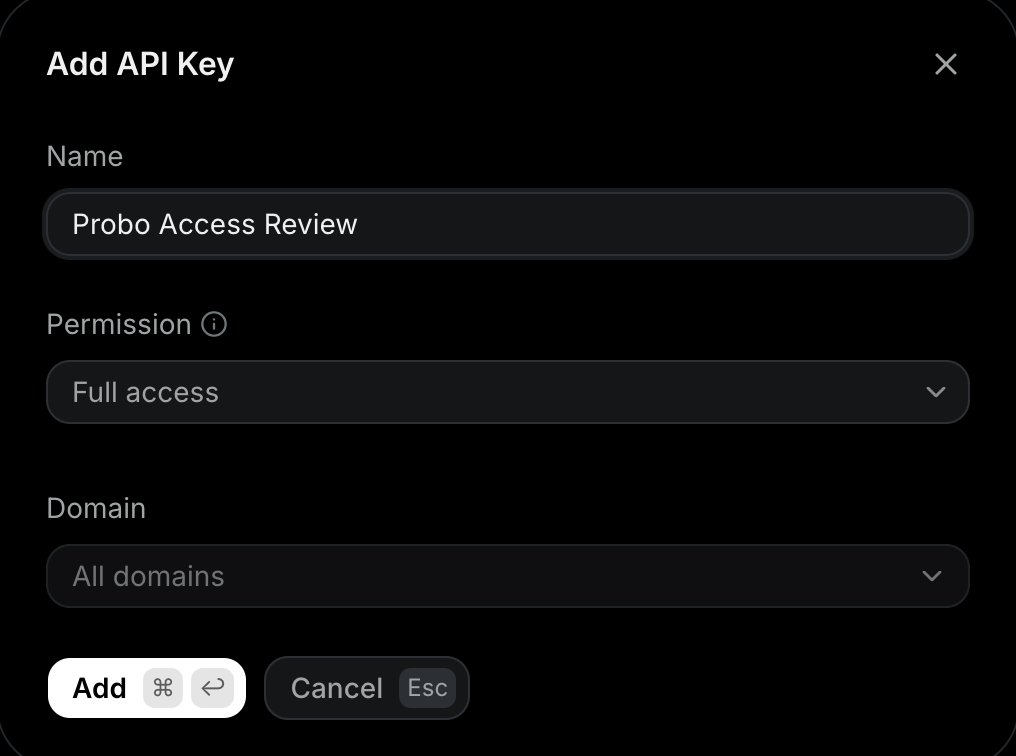
- In the Resend dashboard, go to API Keys in the sidebar.
- Click Create API Key, name it (e.g.
Probo Access Review), and set Permission to Full access, since Probo needs to read the account’s API keys. - Copy the key (
re_…) and store it securely. It is shown only once.
Step 2: Connect in Probo
Section titled “Step 2: Connect in Probo”- In Probo, go to Settings > Connectors and click Add more to open the Marketplace.
- Find Resend and open it.
- Choose API key. Probo registers the Resend OAuth client on every deployment, so Resend always asks how to connect and offers both OAuth and API key.
- Enter a Name for the connection (e.g.
main), paste the key into API key, and click Connect. - Go to Access Review > Sources, click Add sources, tick Resend, and click Add.
Probo lists the source as Resend and pulls the account’s API keys into your campaigns.
Troubleshooting
Section titled “Troubleshooting”- Key rejected. Confirm it is a Full access key (
re_…). A Sending access key only sends emails and will not connect. - No API keys appear. The key must have Full access and belong to the Resend account you are reviewing.
- Team members do not appear. The Resend API returns no team members, so this source only ever contains API keys. Review the people on your team from Settings > Team in the Resend dashboard, and track them in Probo with a CSV source.